
One of the most useful features of the Morserino-32 — and one a lot of owners never discover — is the ability to upload your own custom practice files. Instead of settling for generic canned drills, you can build a file around exactly what you need to work on: a list of the characters still tripping you up, a canned QSO to rehearse before you get on the air, a list of the words you hear most often on the air, or anything else worth copying.
Getting a file onto the device used to mean joining a WiFi hotspot the Morserino broadcasts. Current firmware replaces that with a browser tool over USB, which is faster and doesn’t require juggling WiFi networks. Here’s the current process.
What you’ll need#
- A Morserino-32 (classic or Pocket) on reasonably current firmware
- A USB data cable — many cables that came with phone chargers are charge-only and won’t carry data, which is the single most common reason this doesn’t work on the first try
- Chrome, Edge, or Firefox — the tool talks to the Morserino directly from the browser tab over a USB serial connection; Safari doesn’t support this
- A plain text (
.txt) file with the content you want to send
What the file itself needs to look like#
The File Player expects plain ASCII text, with no formatting — save from a plain text editor (like Notepad on the PC or TextEdit on the Mac), not Word or Pages. A few things worth knowing about how it reads that text:
- Prosigns (the run-together characters like SK or KN) are written as two letters inside brackets or after a backslash —
<sk>,[ka], or\knall work. Supported prosigns arear,bt,as,ka,kn,sk,ve, andbk. - Anything the Morserino can’t turn into Morse — most punctuation beyond the basics, emoji, stray control characters — is just skipped rather than causing an error.
- The Morserino has a bit under 1 MB of storage for the player file — plenty for a lengthy article, though not a whole novel. Currently only one file can reside on the Morserino-32, so whenever you upload a new file, the old one is overwritten.
Splitting one file into chapters#
Since only one file can live on the Morserino at a time, it’s worth knowing you don’t have to choose between, say, your weak-character drills, a canned QSO, and a word list — you can keep all three in the same upload, as separate labeled chapters.
A chapter marker (the manual calls it a part separator) is a special kind of comment: a line starting with the comment indicator <c>, immediately followed by a dollar sign and a short name for the section that starts there. For example:
<c>$ My Difficult CharactersGive each section of your file its own marker — <c>$ My Difficult Characters, then further down <c>$ Common Words, then <c>$ QSO Practice — and upload it as one player.txt instead of juggling separate files you’d otherwise have to keep re-uploading over each other. The M32 Configuration Tool’s File Builder tab is built around exactly this, letting you assemble several pieces of text into one multi-chapter upload.
Adding pauses and tone changes#
The file format also gives you two ways to shape how the text sounds as it plays, which is especially handy for a canned QSO:
- Pauses. Insert
<p>,[p], or\pas its own word (with a space before and after) to add a pause of three word-spaces — useful for a beat between phrases, or between one station’s transmission and the other’s. Stack several in a row (\p \p \p) for a longer pause. Keep the marker separated from the surrounding text with spaces — run it right up against a word, likecq<p>, and the whole thing gets swallowed into the pause instead of being sent. - Tone changes. Insert
<t>,[t], or\tthe same way — its own word, spaced on both sides — to shift the sidetone pitch from that point on; the next<t>marker shifts it back. That’s useful for telling two stations apart in a QSO script (it won’t do anything if your Tone Shift preference is set to No Tone Shift). The same spacing rule applies: run it into a word, likecq<t>, and the marker consumes the rest of that word instead of just marking a tone change.
An example file#
Here’s a short player.txt that puts all of the above to work — four labeled chapters covering a difficult-letters drill, three-letter combinations with pauses between them, a canned SOTA (Summits On The Air) QSO using pause and tone markers to tell the two stations apart, and a run of US state abbreviations:
Swap in your own callsign, weak characters, and QSO text, and you’ve got a custom practice session built exactly around what you need to work on.
Uploading the file#
- Connect the Morserino to your computer with the USB cable.
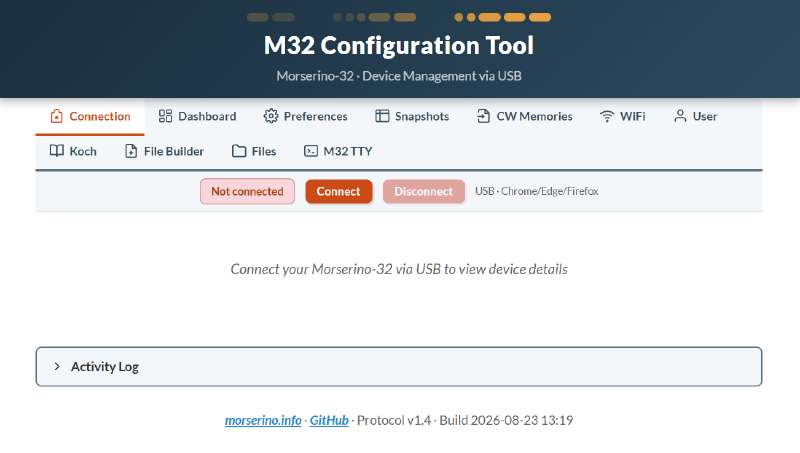
- In your browser, open the M32 Configuration Tool.
- Click Connect. Your Morserino should show up in the browser’s port picker as something like “USB JTAG/serial debug unit (COM4) - Paired” — select it and confirm. (Your COM port number may well be different.) If nothing shows up, see Troubleshooting below.
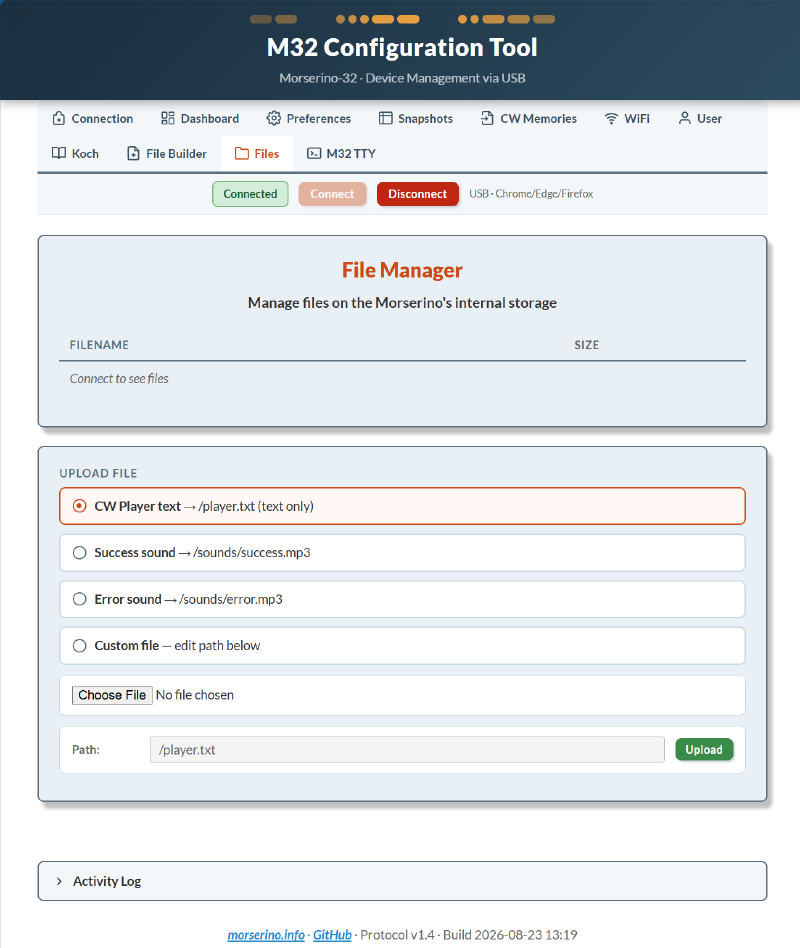
- Click the Files tab.
- Choose CW Player text as the upload target — this is what tells the tool to save your file to the right place on the Morserino (internally,
/player.txt). - Click the Choose File button near the bottom of the window and pick your
.txtfile. - Click Upload.
That’s it — the file is now on the Morserino, ready for the File Player to read.
Playing it back#
On the Morserino itself:
- Enter the CW Generator mode from the main menu.
- Select File Player as the source (rotate the encoder knob to cycle through the generator’s sources, the same way you’d pick Callsigns or Abbreviations).
- Start it with a quick tap of the paddle, or by pressing the encoder knob straight down. You’ll hear an alert (
VVV <KA>) before the text itself begins. - Copy along as it plays. A single click on the encoder knob toggles what turning it controls — keyer speed or volume — same as everywhere else in the Morserino’s menus.
- Stop the same way you started: a quick paddle tap or a press of the encoder knob.
The File Player remembers your place. Stop partway through a long file, and the next time you start it, it picks up right where you left off — handy for working through something over several practice sessions. When it reaches the end, it loops back to the beginning rather than stopping.
If the browser tool doesn’t see your Morserino#
- Try a different USB cable. This fixes it more often than anything else on this list.
- Confirm you’re in Chrome, Edge, or Firefox, not Safari.
- Check the port shows up at the OS level. ESP32-based boards like the Morserino talk over USB through a small serial-bridge chip (commonly a CP2102 or CH340 family part), and on Windows that occasionally needs its own driver before the port appears at all. If the browser’s connect dialog comes up empty, check Windows Device Manager for an unrecognized device or one flagged with a driver warning, and install the matching driver.
- Close other programs that might be holding the serial port open — only one application can talk to it at a time, and a leftover terminal or logging tool can block the browser from connecting.
- Update firmware if the page won’t connect at all. The USB File Manager needs a reasonably current firmware version, so a much older Morserino may need a firmware update before it’ll show up here.