
HamShackTech is mostly about bringing modern technology into the ham shack — remote operation, radio mods, Stream Deck automation, that kind of thing. But there’s a second obsession running underneath all of it right now: I’m learning CW, and I am nowhere near done.
I’m currently in my second semester of CW Academy, the free, volunteer-run course CWops offers to help hams learn and improve Morse code. If you’re thinking about learning CW yourself, I can’t recommend it enough — but that’s a post for another day.
What this post is actually about is something I noticed a few weeks into my first semester: an enormous amount of class time — real, paid-in-attention class time — gets eaten alive by one dumb, solvable problem. Getting clean, intelligible Morse code into a Zoom call is harder than it has any right to be. A radio’s sidetone through a laptop mic picks up every fan, dog bark, and keyboard click in the room, and the volume is usually too quiet for anyone else on the call to copy comfortably. Multiply that across a class full of students all fighting the same fight, and you can lose ten minutes of a session just to “can you send that again, I couldn’t quite get it.”
Early in my own CW journey I stumbled onto the Vail Adapter — a nifty little USB device that turns your paddle or straight key into a clean digital keying signal.
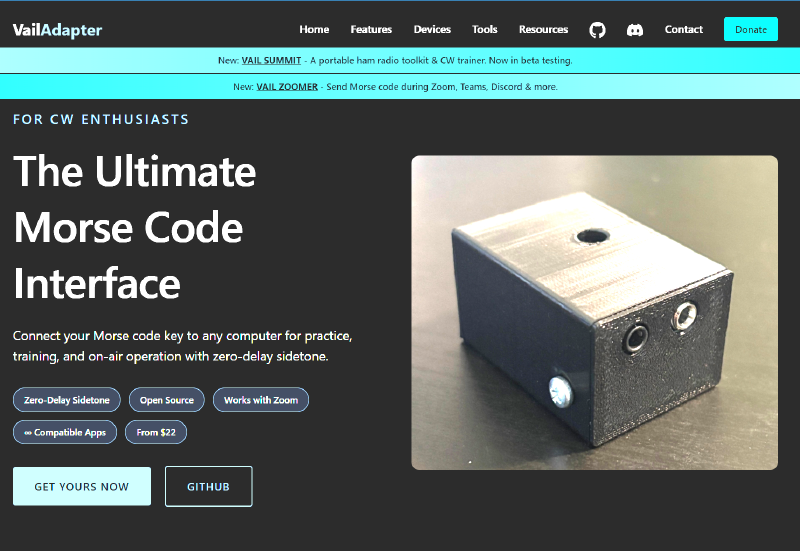
Not long after, I found its companion app, Vail Zoomer — free, open-source software that takes that signal and injects your sidetone directly into your Zoom (or Teams, Discord, Meet) audio, right alongside your voice. No microphone required to carry the code at all.
The difference was immediate and honestly a little embarrassing for everyone else on the call. My dits and dahs came through crisp, at a consistent volume, with zero room noise — while classmates were still straining through mic static two rooms over. Within a few sessions, students and even our advisors started asking the same question: “why does your code sound so much better than everyone else’s?”
I answered that question enough times in breakout rooms that I basically became the class’s unofficial Vail Zoomer evangelist. At some point it stopped making sense to keep explaining the same audio driver settings and Zoom microphone quirks one Zoom call at a time, so I put together a proper visual, step-by-step tutorial instead — screenshots and all, covering the setup wizard, the virtual audio routing, and the handful of Zoom settings that have to be flipped or Zoom will “helpfully” filter your CW tone out as background noise.
If you’re a CW Academy student — or in any code class that meets over video — and you want your sidetone to sound like it belongs on the call instead of fighting to be heard on it, here’s the full walkthrough:
Setting Up Vail Zoomer for CW on Zoom →
It’s the first how-to guide I’ve published on this site, and it exists entirely because I got tired of explaining the same thing over and over on breakout calls. If it saves you — or your classmates — a few minutes of “wait, what tab is that in?” during your next session, it’s done its job.